SuperGroup
SuperGroup

Fast and powerful group
management and grade copying.

SuperGroup scans your DaVinci Resolve timeline into searchable, sortable thumbnails so you can organize groups in seconds - by hand, by metadata, or automatically by image similarity.

SuperCopy applies grades between timelines with the same drag-and-drop simplicity, matched automatically by metadata or image.
macOS + Windows License
Perpetual license
$50
Try Before You Buy
3-day license, emailed instantly
14-day money-back guarantee · No subscription - pay once · Secure checkout via Paddle
SuperGroup SuperCopy

Organize every clip in seconds.

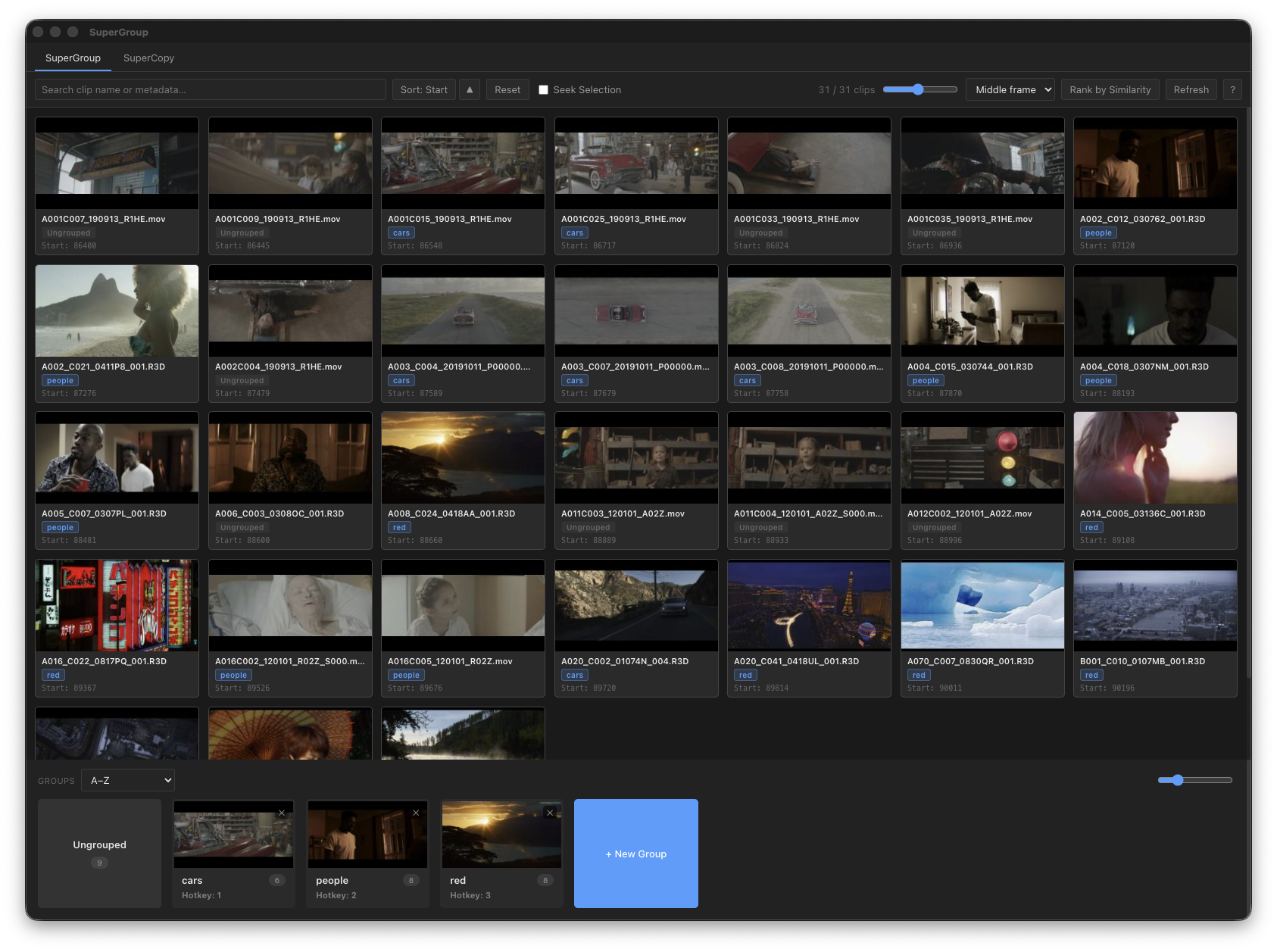
SuperGroup scans the current timeline and shows every clip as a thumbnail - searchable and sortable by any metadata field available in Resolve.

SuperGroup tab showing every clip in the timeline as a searchable, sortable thumbnail grid

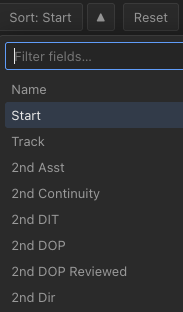
Search and sort by any metadata field

Type to filter the grid instantly, or sort by any metadata field Resolve exposes - not just the defaults. Every field in your project is searchable and available as a sort key.

Sort field picker with a searchable list of every metadata field in the project

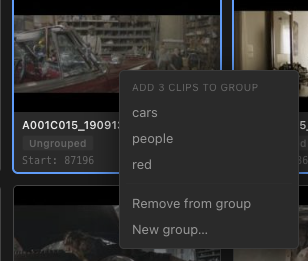
Drag, drop, or right-click to group

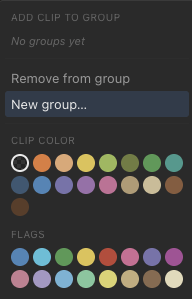
Simply drag clips or entire groups of clips onto existing or new groups in the group bar - or right-click any selection to add it to a group without leaving the grid.

Right-click menu for adding selected clips to a group

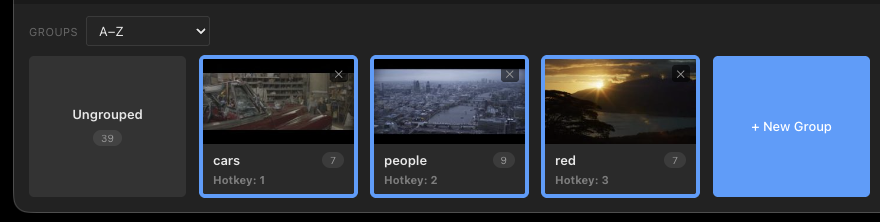
The group bar

Every group lives in a bar along the bottom of the window.

  • Shows every group with a thumbnail and clip count
  • Sortable by Resolve order or alphabetically
  • Select one group, multiple groups, or Ungrouped to filter the grid instantly
Group bar showing Ungrouped, cars, people, and red groups with previews and clip counts

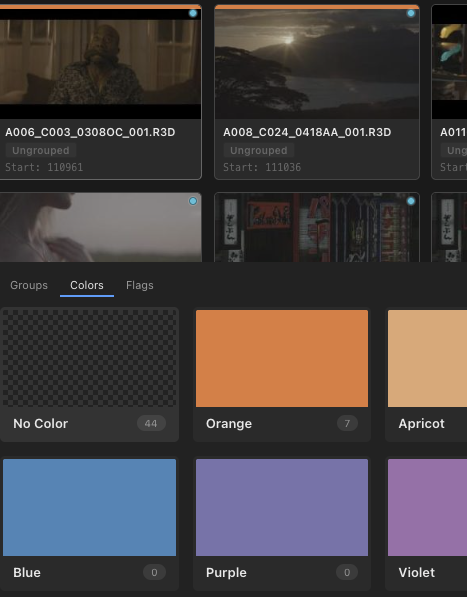
Assign colors and flags, the same way

Colors and flags work just like groups - drag clips onto the Colors or Flags bar to assign them, or right-click any selection to set a color or flag without leaving the grid.

Colors bar showing every color swatch available for organizing clips
Right-click menu for setting a clip's color and flag directly

Image-based grouping

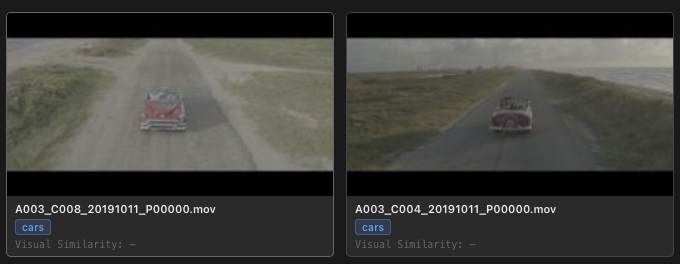
Analyze every thumbnail in one click, and SuperGroup automatically sorts clips by visual similarity - a great starting point for interviews or matched camera angles.

Rank by Similarity control in the SuperGroup toolbar
Two visually similar clips ranked next to each other for grouping

Copy grades between timelines, instantly.

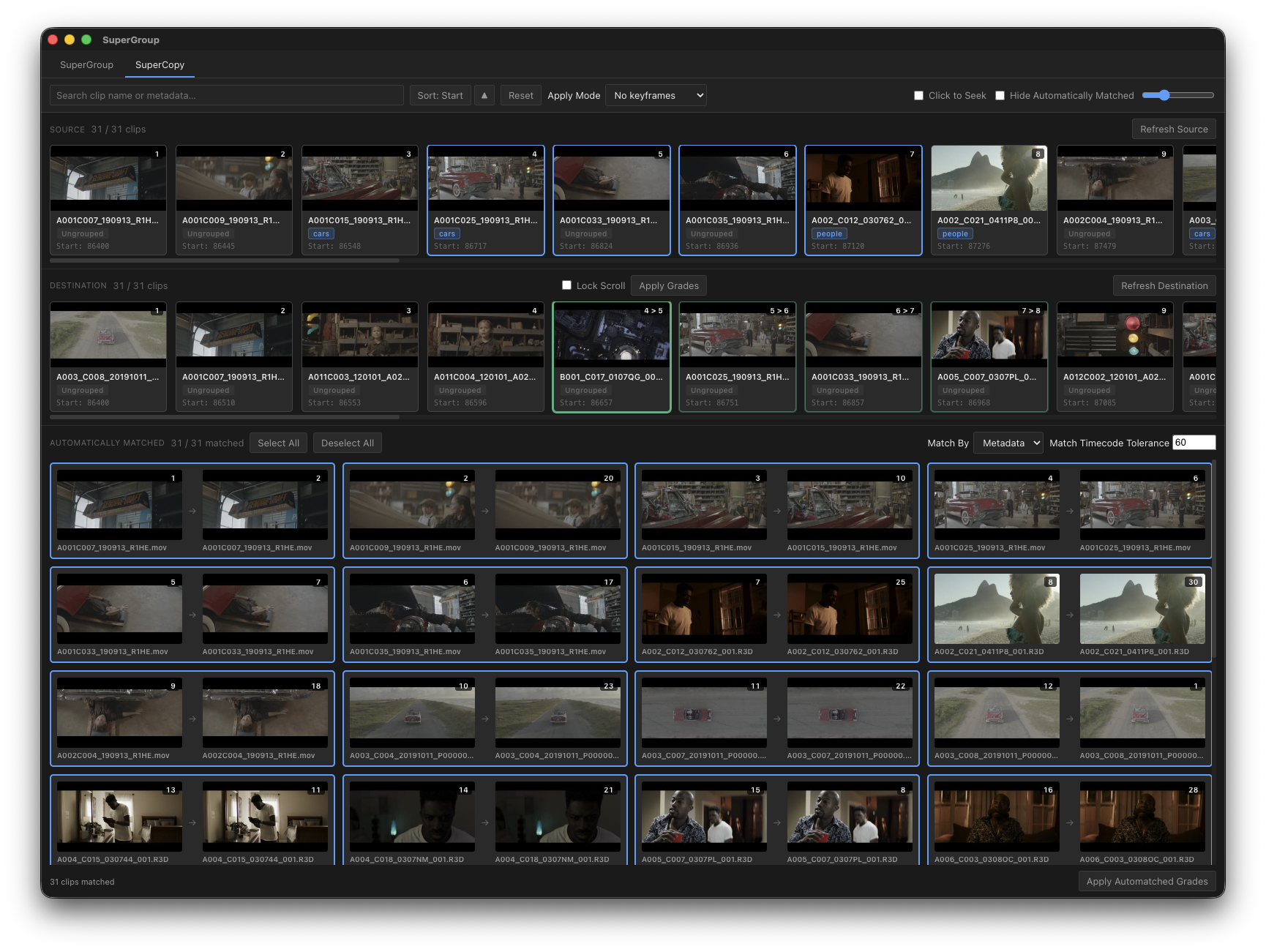
Load a source and destination timeline from Resolve, then copy grades between instantly with drag and drop, or multi-selection.

SuperCopy tab showing linked source and destination thumbnail strips with automatically matched clips

Dual filmstrips

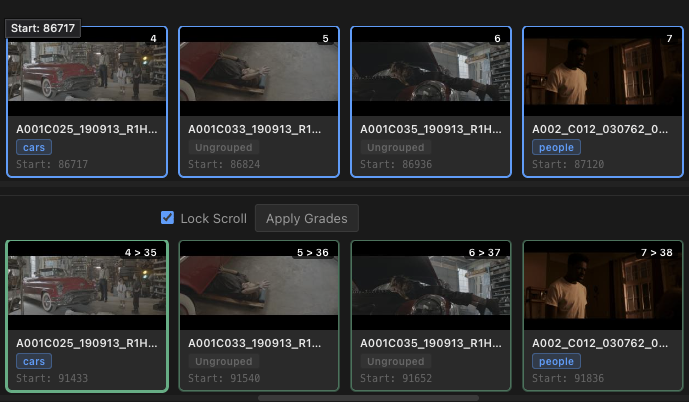
Source and destination clips sit in two independent filmstrips, searchable and sortable by any metadata field, and linked together at any position you choose.

Source and destination filmstrips manually linked at a chosen position

Automatic matching

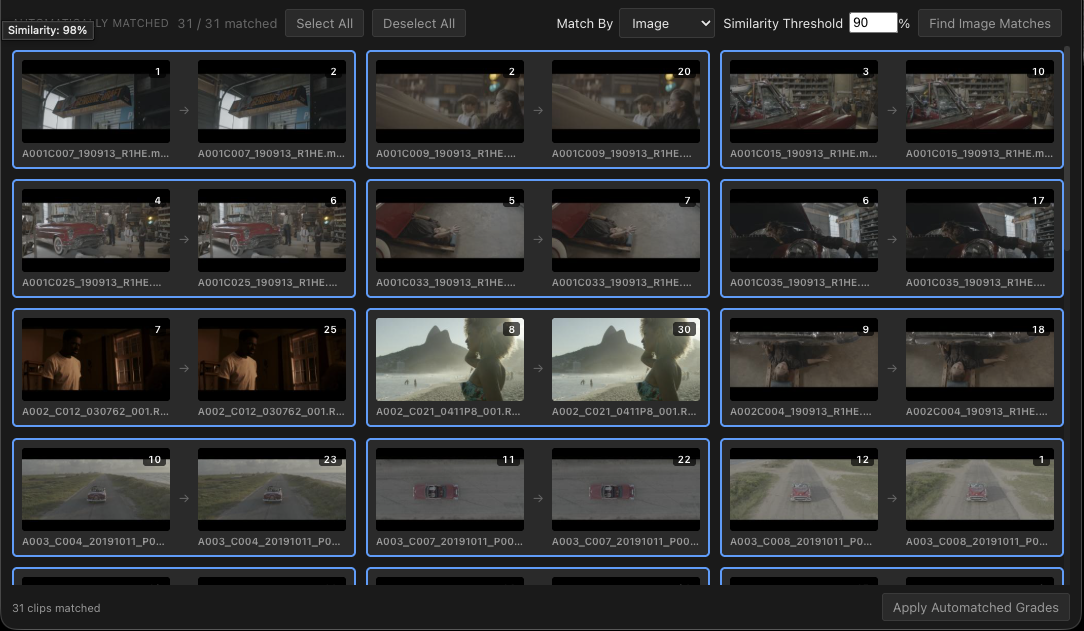
SuperCopy will automatically find matching clips based on name, reel, and timecode metadata. Or use the same image-matching as SuperGroup, to automatically link visually similar clips.

Automatically matched clips ranked by image similarity between source and destination

Instant, visible grade application

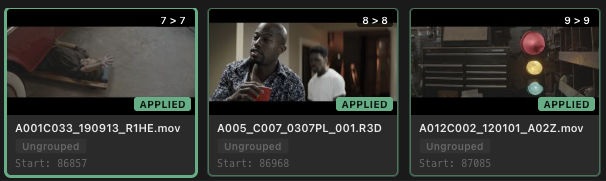
Copy single grades or whole groups of grades by dragging/dropping or selecting multiple at once. Every applied clip gets a clear, positive indicator the moment its grade is applied.

Clip thumbnails with a green APPLIED indicator after their grades were copied

Frequently Asked Questions.

Licensing
Can I install on more than one machine?

SuperGroup is licensed per machine. We don't ever phone home or probe your network - but we ask that if you are using it on multiple machines, you purchase a license for each one.

Does SuperGroup work over a network?

No. SuperGroup has to run on the same machine as DaVinci Resolve, because it needs to grab still files from the gallery.

Is there a demo or trial available?

Time-limited demo licenses are available on this page.

Updates
Are updates included with my license?

Bug fixes and minor feature updates are always free. Major feature updates may carry a future upgrade cost, but we'll be transparent about that if/when the time comes.

Where do I download the latest version?

Current installers are always available at retrograde.tools/supergroup/download.

Troubleshooting
I'm getting black frames for some clips

SuperGroup uses Resolve's "Grab All Stills" function to generate thumbnails. To load a full timeline - before using SuperGroup, disable any clip filters, make sure the gallery tab is enabled, and that your gallery stills path is an accessible location.

Anything that would stop "Grab All Stills" from working will also stop SuperGroup from getting thumbnails.


from
Retrograde Labs

Get SuperGroup.

Fast group management and grade copying for every DaVinci Resolve timeline.

macOS + Windows License
Perpetual license
$50
Try Before You Buy
3-day license, emailed instantly
14-day money-back guarantee · No subscription - pay once · Secure checkout via Paddle
Retrograde Labs More from Retrograde Labs